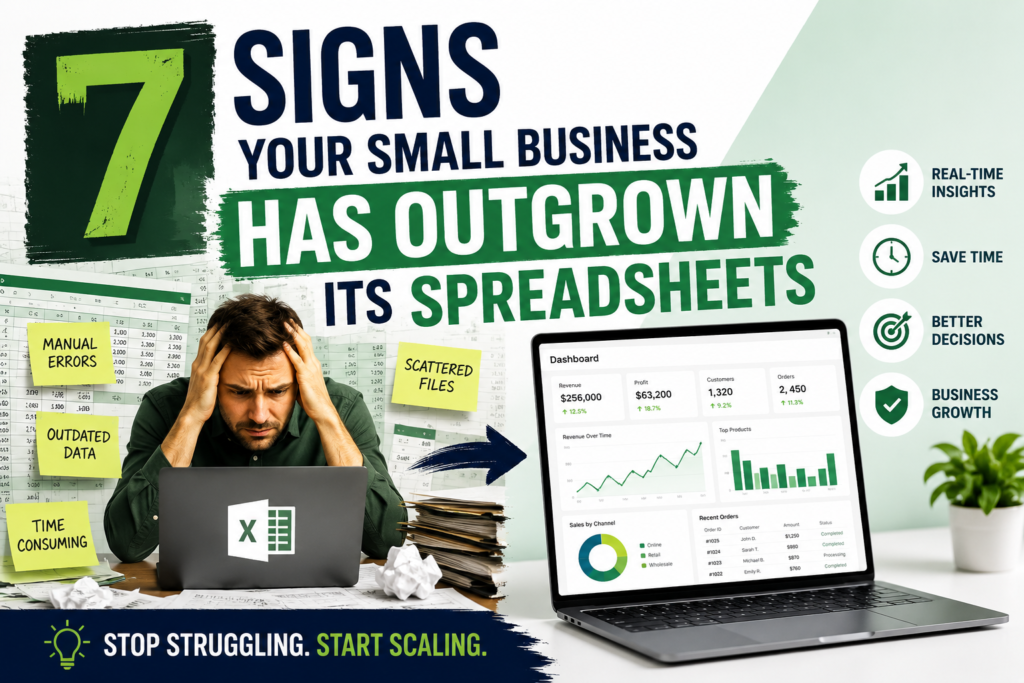
7 Signs Your Small Business Has Outgrown Its Spreadsheets
When you launch a company, Microsoft Excel and Google Sheets are the ultimate operational safety net. They are flexible, immediately accessible, and cost nothing extra. You can spin up an expense tracker, a lightweight CRM, and an inventory ledger in minutes.
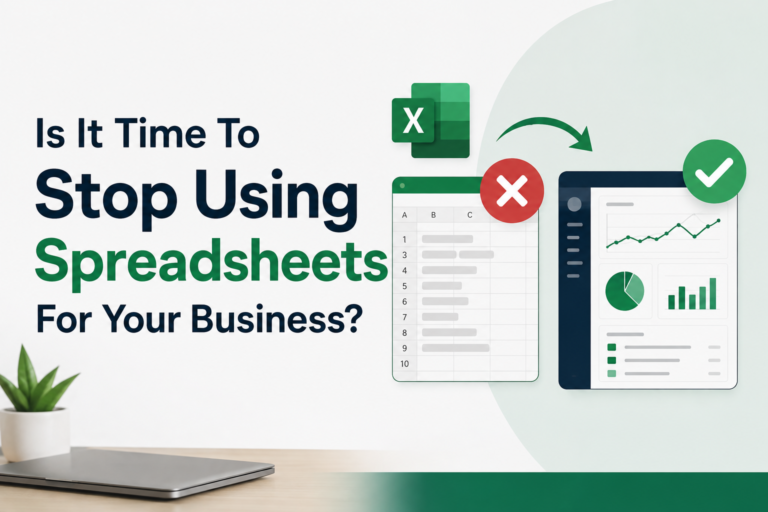
However, as order volumes rise, team members join, and operations scale, the very flexibility that made spreadsheets appealing turns into an operational liability. A file that once saved you time becomes a fragile, error-prone bottleneck.
Recognizing the tipping point before data corruption or lost insights harms your bottom line is critical. Here are the 7 signs your small business has outgrown its spreadsheets and needs dedicated software.
Table of Contents
The Excel Trap: Why Spreadsheets Work Early (And Fail Later)
Spreadsheets are general-purpose calculation grids, not specialized relational databases. In the early stages of a business, manual intervention acts as a feature: touching every data point yourself gives you an intimate feel for your unit economics and cash flow.
As transaction velocity increases, manual habits stop being an agile advantage. When multiple people edit files simultaneously or data flows in from multiple sales channels, spreadsheets begin to break under the strain.
The 7 Definitive Signs Your Small Business Has Outgrown Its Spreadsheets
The 7 Spreadsheet Warning Signs:
- 1. Silent Calculation Errors: Unchecked formula discrepancies.
- 2. Manual Data Entry Time Sinks: Hours lost to copy-pasting CSVs.
- 3. Version Control Nightmares: Conflicting file copies.
- 4. Fragile Webs of Linked Files: Cascading
#REF!errors. - 5. Lack of Real-Time Visibility: Operating on outdated historical data.
- 6. Zero Granular Security Control: Unrestricted folder permissions.
- 7. Multi-Source Reporting Gridlock: Exhausting manual audits.
1. Frequent Data Discrepancies and Silent Calculation Errors
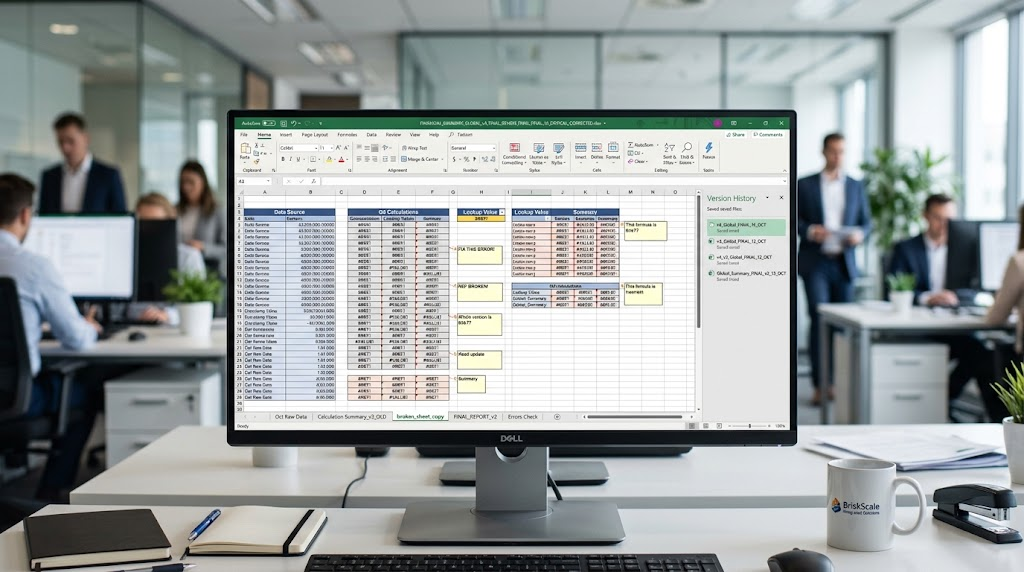
- The Symptom: Your P&L statement says one thing, your bank account balance says another, and your team spends hours hunting down a $240 variance.
- Why Excel Fails Here: Spreadsheets lack built-in validation rules. A mistyped digit, an accidental deletion of a formula row, or a text string pasted into a numeric column corrupts calculations silently without throwing an error code. For a deeper look at how data errors impact corporate finance, review Investopedia’s guide on financial data integrity.
- The Tipping Point: When leadership stops trusting the numbers in weekly reports and demands manual re-auditing before every meeting, your data architecture has failed.
You May Also Like: What Business Data Should a Small Business Track Every Week?
2. Manual Data Entry Consuming Hours Every Day
- The Symptom: You or your team spend the first hour of every morning copy-pasting CSV exports from Stripe, Shopify, and bank feeds into master rows.
- Why Excel Fails Here: Excel does not natively synchronize with external cloud APIs without custom scripts or third-party connectors (like Coupler.io or Zapier).
- The Tipping Point: When administrative data entry eats into time previously spent on client delivery, product development, or sales calls, manual logging is actively restricting revenue growth.
3. Version Control Nightmares and Broken Collaboration
- The Symptom: Your shared folder contains files named
Inventory_Master_v4_FINAL_edit_John.xlsxandInventory_Master_v5_NEW.xlsx, and team members frequently overwrite each other’s updates. - Why Excel Fails Here: Desktop spreadsheets lock files during simultaneous multi-user editing, forcing teams to email copies back and forth, which immediately shatters data integrity.
- The Tipping Point: When your team spends more time coordinating who holds the master file than executing operational tasks, you need a cloud-native database or multi-user ERP.

4. An Intricate, Fragile Web of Interconnected Files
- The Symptom: Moving a folder or renaming a source file triggers a cascading wave of
#REF!errors across five dependent workbooks. - Why Excel Fails Here: Using formulas to link separate spreadsheets (
='[Sales_2026.xlsx]Q1'!$B$12) creates brittle dependencies that snap easily when folder structures change. - The Tipping Point: When making a simple structural update feels like defusing a bomb because you are terrified of breaking downstream reports, your file architecture is too complex.
5. Inability to Pull Real-Time Operational Insights
- The Symptom: To answer a simple stakeholder question (“What is our exact cash burn right now?”), you have to manually refresh queries, stitch sheets together, and wait for calculations to run.
- Why Excel Fails Here: Spreadsheets report on historical, static snapshots rather than live transactional streams.
- The Tipping Point: Operating on data that is 24 to 72 hours old forces reactive decision-making rather than proactive management in fast-moving markets.
6. Zero Granular Security or User Access Control
- The Symptom: Anyone who has access to your Google Drive folder or local network share can view, edit, or delete sensitive payroll records and supplier contracts.
- Why Excel Fails Here: Basic password protection on spreadsheets is easily bypassed, and Excel lacks Role-Based Access Control (RBAC) where an employee can view inventory levels without seeing employee salaries.
- The Tipping Point: When data confidentiality regulations or internal compliance requirements mandate strict role-based permissions, desktop spreadsheets fall short.
7. Consolidating Multi-Department Reports Feels Like a Major Audit
- The Symptom: Pulling together a holistic monthly report requiring marketing ad spend, sales pipeline conversions, shipping logs, and accounting expenses takes three full days.
- Why Excel Fails Here: Disparate data silos cannot talk to each other automatically without a centralized relational database or business intelligence layer.
- The Tipping Point: When data compilation takes longer than data analysis and strategic decision-making, your reporting infrastructure is broken.
The Upgrade Path: What to Adopt When You Leave Spreadsheets Behind
When you recognize these warning signs, you do not necessarily have to abandon Excel entirely overnight, but you must supplement or replace your workflows with specialized tools:
| Operational Area | Outgrown Spreadsheet Symptom | Recommended Software Upgrade |
| Accounting & Billing | Manual ledger entries, mismatched bank recs | QuickBooks Online, Xero, Wave |
| Sales & CRM | Static lead tracking sheets, missed follow-ups | HubSpot, Pipedrive, Airtable |
| Inventory & Supply Chain | Stockouts, broken master logs | Katana, Unleashed, Cin7 |
| Reporting & Dashboards | Sluggish multi-tab workbooks | Microsoft Power BI, Looker Studio |
| Workflow Automation | Manual copy-pasting across apps | Make, Zapier, Microsoft Power Automate |
Read Also: How to Use Excel to Manage a Small Business (The Complete Guide)
Frequently Asked Questions
Does outgrowing Excel mean I should stop using spreadsheets entirely?
No. Spreadsheets remain exceptional tools for ad-hoc financial modeling, prototyping calculations, and fast exploratory data analysis. The goal is to stop using them as your primary operational database for multi-user inventory, CRM, and transactional ledgers.
What is the intermediate step before buying expensive enterprise software?
Before investing in heavy Enterprise Resource Planning (ERP) software, small teams can bridge the gap using automated data connectors (like Coupler.io), Power Query for automated data cleansing, and cloud-native relational databases like Airtable or Google BigQuery combined with Looker Studio dashboards.
How do I convince my team to transition away from messy spreadsheets?
Start by auditing the total weekly hours spent fixing spreadsheet errors and manual data entry. Present this “administrative tax” to your team, then pilot a dedicated software solution (like a CRM or automated inventory tool) on just one department to prove the efficiency gains before a company-wide rollout.