What Is Power Query? The Ultimate Time-Saving Guide for Small Businesses
Power Query for Small Business: 4 Easy Ways to Automate Excel
Learning how to use Power Query for small business reporting is the single best way to stop doing manual data entry. If you run a company, you likely spend a frustrating amount of your week wrestling with messy spreadsheets. Between downloading bank statements, exporting sales data, and pulling expenses, the tedious work never seems to end.
Usually, when the raw data arrives, you have to delete blank rows, split names into separate columns, fix date formats, and write complicated formulas just to stitch everything together. By the time your data is clean enough to actually analyze, you are out of time and energy. Worse, next week, you have to do the exact same manual cleanup all over again.
This is where automation comes in. Built directly into Microsoft Excel and Power BI, this data preparation tool is designed to handle the boring, repetitive parts of spreadsheet management. Let’s break down what it is, how it works, and how it can help you automate your workflows without writing a single line of code.
Table of Contents
Why Power Query for Small Business is the Ultimate Solution
Think of this tool as a digital recipe for your data.
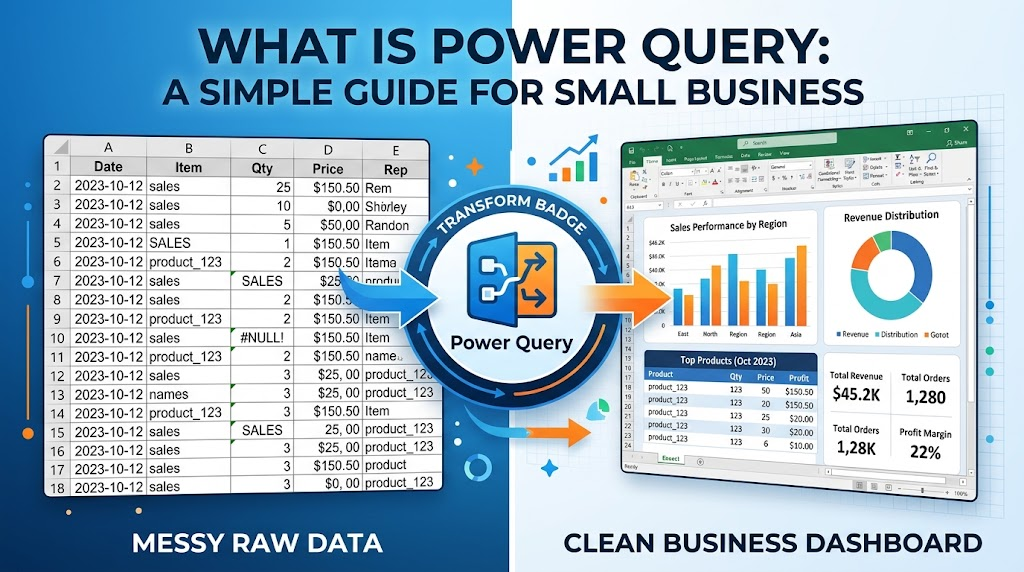
When you cook, you follow a recipe: chop the onions, heat the pan, add the sauce. It does the exact same thing for your spreadsheets. You show it how to clean your data once—remove this column, capitalize this text, filter out these empty rows—and the software records those actions as a step-by-step recipe.
The next time you get a messy data export, you do not have to repeat the cleanup process. You simply click a button called Refresh, and your new data instantly runs through the exact same recipe. What used to take two hours now takes three seconds.
You do not need to know complex coding or macros to use it. The entire tool is built on a simple, click-and-point interface. To see the technical specifications, you can check out the official Microsoft Power Query page.
Read Also: How to Structure Spreadsheets for Small Business Reporting (Step-by-Step Guide)
How It Works: The 3-Step Cycle
When setting up Power Query for small business workflows, you always follow a straightforward, three-step process.
- Connect: You tell the system where your data lives. This could be a single CSV file, a folder on your computer containing 50 different daily sales reports, or an online database.
- Transform: You open the Editor window. Here, you click simple buttons to clean and shape the data. You can delete columns, fix typos, filter out internal test orders, and merge multiple lists. Every click is recorded automatically.
- Load: Once the data is perfectly formatted, you load it back into a clean Excel workbook or a Power BI dashboard. From here, you can feed it directly into your automated cash flow statements or monthly reports.
You May Also Like: 10 Excel Mistakes That Can Ruin Small Business Reports (And How to Fix Them)
4 Easy Ways to Automate Your Work
If you are wondering whether learning this tool is worth your time, consider these common scenarios where using Power Query for small business management truly shines.
- 1. Fixing Messy Customer Exports
- The Problem: You download a weekly CSV of customer orders, but the “First Name” and “Last Name” are jammed into one column.
- The Fix: You use the “Split Column” button to separate the names. The next time you export the CSV and hit Refresh, the new names are split automatically.
- 2. Combining Monthly Reports
- The Problem: You have 12 different Excel workbooks—one for each month’s expenses—and you need to combine them into an annual report.
- The Fix: You point the tool to the folder containing the 12 files. It automatically stacks all the files on top of each other into one master list.
- 3. Matching Inventory and Supplier Data
- The Problem: Your e-commerce store uses different product IDs than your supplier’s inventory list, and you constantly struggle to match them up. (If you still need basic formula help, check out our guide on essential Excel functions).
- The Fix: You use the “Merge Queries” feature to link the two tables together permanently, creating a reliable connection between your store data and supplier data.
- 4. Handling Massive Files Without Crashing
- The Problem: You are dealing with massive files containing hundreds of thousands of rows that cause Excel to freeze or crash.
- The Fix: The tool processes data behind the scenes. It can comfortably handle millions of rows of data, summarizing it into a lightweight table before ever loading it into your actual Excel sheet.
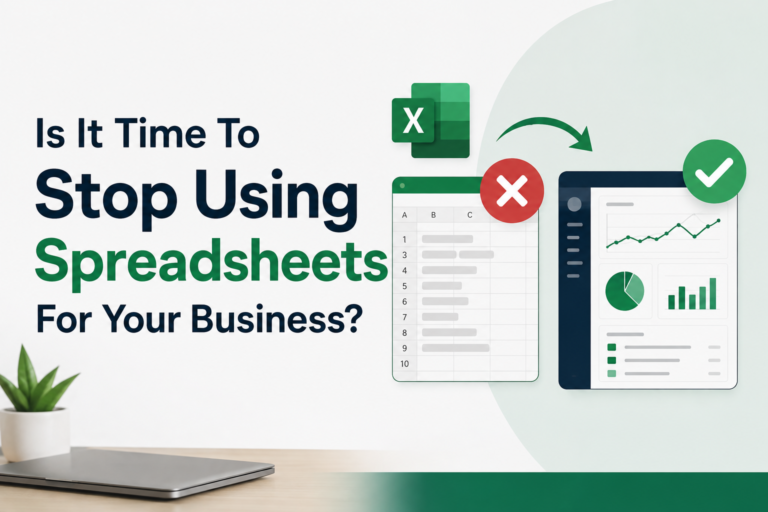
Read Also: Is It Time To Stop Using Spreadsheets For Your Business?
A Practical Example: Automating a Sales Report
Let’s look at a concrete example of how you can use Power Query for small business tracking today.
Imagine you run an online store and download a messy monthly sales report.
- Open a blank Excel workbook.
- Go to the Data tab on the top ribbon.
- Click Get Data > From File > From Text/CSV.
- Select your messy sales report file.
- Click Transform Data.
The Editor will open. You can now right-click any column header to remove it, change text to uppercase, or filter out canceled orders. Once it looks perfect, click Close & Load in the top left corner.
Your clean data is now in Excel. Next month, simply save the new sales report over the old file with the exact same name, open your Excel workbook, go to the Data tab, and click Refresh All. Your new data is instantly cleaned and loaded.
Read Also: 10 Essential Excel Functions for Small Business Owners (With Real Examples)
Frequently Asked Questions
Is it free? Yes. If you have a modern version of Microsoft Excel (2016 or newer) or Microsoft 365, it is already built-in and completely free to use. It is also included for free in Power BI Desktop.
Do I need to know how to code to use it? No. While it has its own code running in the background, 95% of tasks can be completed using just the visual, point-and-click buttons in the menu.
Does it change my original data? No. It is a read-only tool. It looks at your original raw data, applies your cleaning steps in its own sandbox, and outputs the clean version into a new sheet. Your original messy file remains completely untouched and safe.
Stop wasting your Fridays doing manual data entry. By integrating Power Query for small business reporting into your daily routine, you can easily build reliable systems that give you your time back.